Quick Start Guide
Meet Doly
Doly is more than a robot, it’s an interactive companion that grows and adapts alongside you. Featuring advanced capabilities such as voice interaction, face and object recognition, and customizable behaviors, Doly encourages creativity and education through playful engagement.
What's Inside
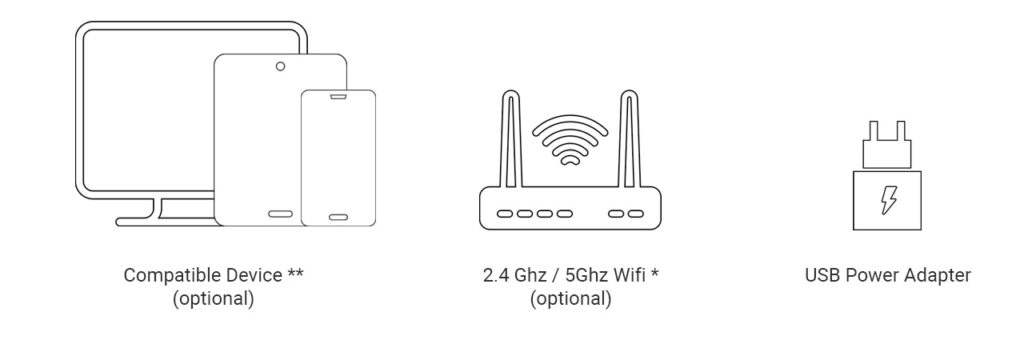
What You'll Need at Home
To make the most of your Doly experience, please ensure you have the following essentials ready at home:
 USB-A Power Adapter – Required to power Doly’s charging station. (Min 1.5A 5VDC output)
 Wi-Fi Network – Recommended for setup and accessing features like language selection, user personalization, and software updates.
 Mobile Device or PC – Recommended for app-based interactions. Compatible with Android, iOS, or Windows desktop systems.
Note: Doly can function out of the box without setup. However, completing the setup ensures improved performance, better personalization, and access to additional features.
Safety Information
Please follow these guidelines to ensure safe and enjoyable use of your Doly robot:
🔋 Battery Safety: Always use the provided charge station to recharge Doly’s battery. Do not attempt to open, puncture, or expose the battery to extreme heat or water.
⚡ Electrical Safety: Avoid exposure to water or moisture. Do not disassemble or attempt repairs yourself. If your Doly robot requires maintenance, please contact customer support.
⚠️ Operating Environment: Use Doly on flat, stable surfaces away from stairs to prevent falls or damage. Keep Doly away from direct sunlight, extreme temperatures, and humidity.
🧒 User Supervision: Doly is designed for responsible use. Young users should always be supervised by an adult during operation to ensure safe and proper handling.
Let's get started!
Doly is packed with advanced features that set it apart as a truly smart and responsive AI companion:
🤖 Edge AI Processing – Doly runs advanced AI tasks like face and object recognition on-device with low latency.
🗣️ Conversational Voice Interface – Understands speech, enabling dynamic interactions without relying on a constant internet connection.
👁 Interactive Facial Expressions – High-resolution screen displays lively, animated eyes that change with mood, context, and user interactions.
🧠 Adaptive Personality Engine – Doly evolves through interactions, gradually shaping a unique personality based on user engagement.
🛠️ Custom Programming Interface – Supports graphical coding (block-based) as well as advanced integration through tools and APIs.
🌐 Smart Connectivity – Seamlessly connects via Wi-Fi and Bluetooth for app control, updates, and external integrations.
🔌 Expandable I/O Port – Great for robotics enthusiasts and makers who want to connect additional sensors or modules for extended functionality.
🔋 Optimized Power Management – Long-lasting rechargeable battery supports extended usage with intelligent sleep and wake features. (🔧 Visual Guide)
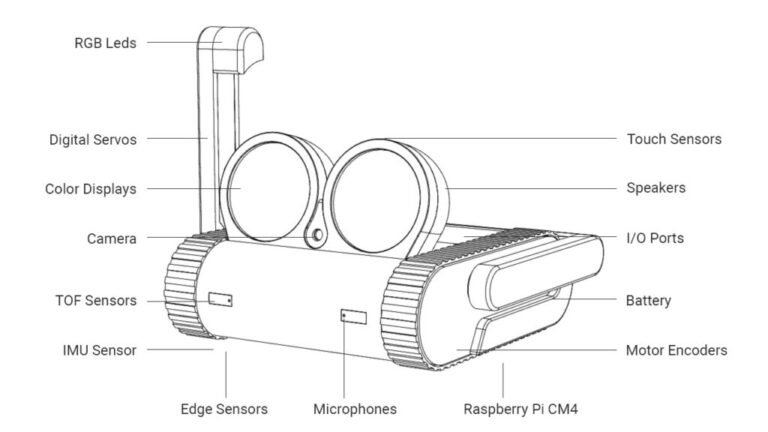
Know your Doly
Setup Instructions
4.2. Connecting Doly to the App
- Power on Doly and wait until the eyes appear.
- Ensure Bluetooth and Wi-Fi are enabled on your mobile device or PC.
- Open the app and follow the on-screen instructions.
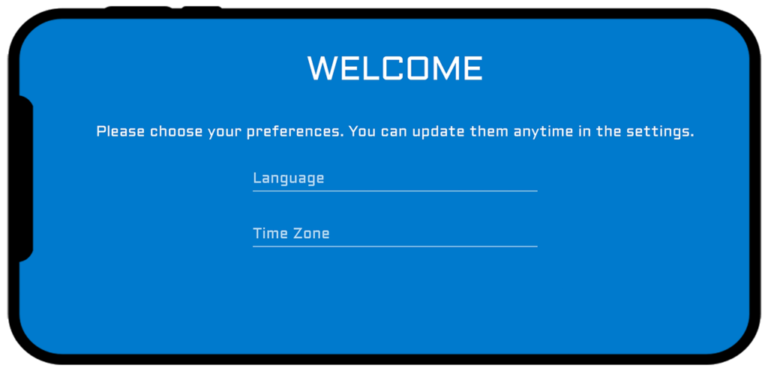
- The app will guide you through setup options such as:
- Language and time zone selection
- Wi-Fi configuration
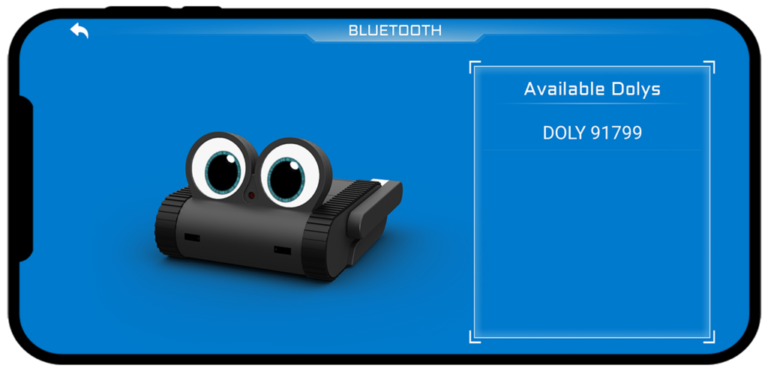
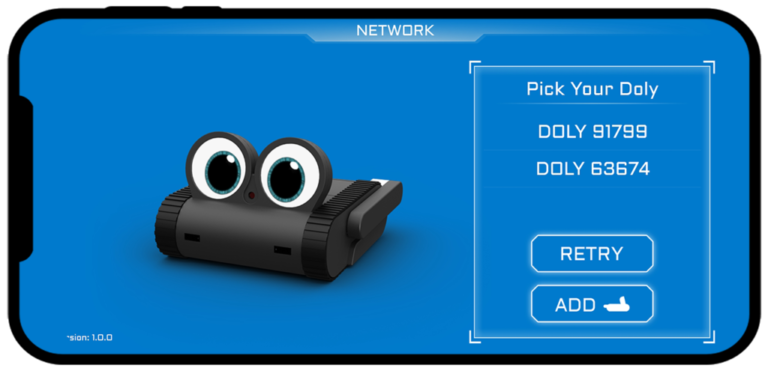
 After a successful Bluetooth scan, your Doly should appear in the list. Select your Doly and follow the steps on the next screen.
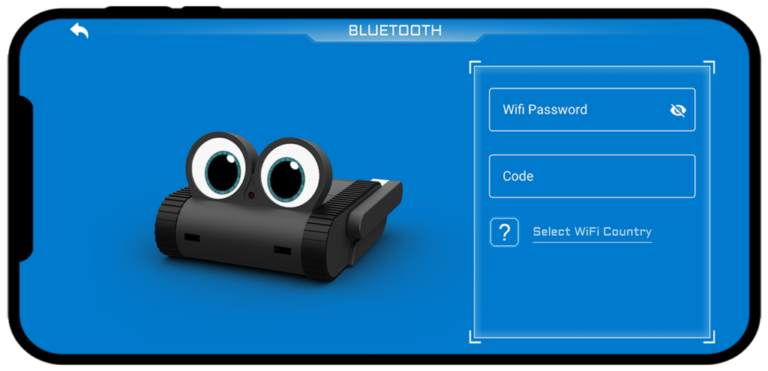
- After a successful Bluetooth connection:
Enter your Wi-Fi password
Enter the code displayed on Doly’s eyes
Select your Wi-Fi country code
Note: Once your Doly is linked with your device, it will connect automatically during future launches, provided both devices are on the same network.
The Network page is not related to your Wi-Fi configuration. This page displays active Dolys connected to the same network. For example, if you have one or multiple Doly units, they will appear on this page after a successful Wi-Fi setup via Bluetooth.
After the initial installation, the application starts on the Bluetooth page. If you skip or fail the Bluetooth setup during the first run, or if you close and reopen the app later, it will start on the Network page instead. In that case, please wait for the scan to complete, then click the “ADD” button to return to the Bluetooth page for Wi-Fi setup.
This behavior might seem confusing during the initial setup, but it offers a convenient and efficient workflow once the Wi-Fi configuration is successfully completed.
 Stress Bar Info
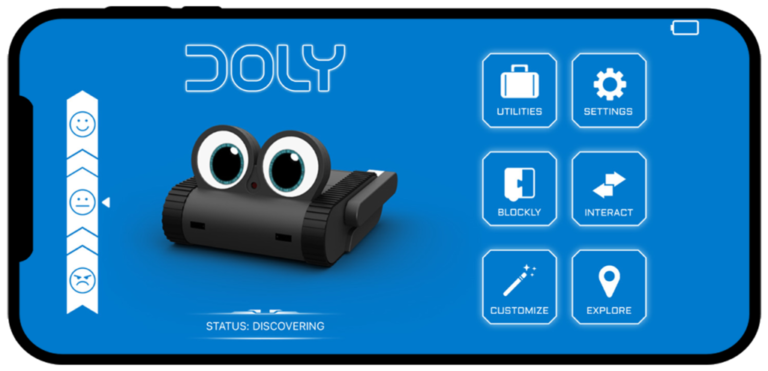

The Doly stress bar reflects both short-term and long-term emotional states. For example, when Doly gets angry or happy, you can observe changes in the stress bar in real time. At the same time, how you treat Doly determines long-term stress levels.
Both short-term and long-term stress levels gradually return to a neutral state over time. Doly’s reactions to interactions can cause temporary spikes or drops in stress levels, either positively or negatively, but these quick changes will also return to the overall baseline level.
The way you interact with Doly directly influences behavior. Every positive interaction helps Doly become more positive over time, while repeated negative interactions can cause Doly to develop a more irritable personality.
Placement Tips
Exploring Doly’s Features
Now that Doly is powered on and set up, it’s time to discover what your new companion can do. Let’s start with the basics:
Talk to Doly
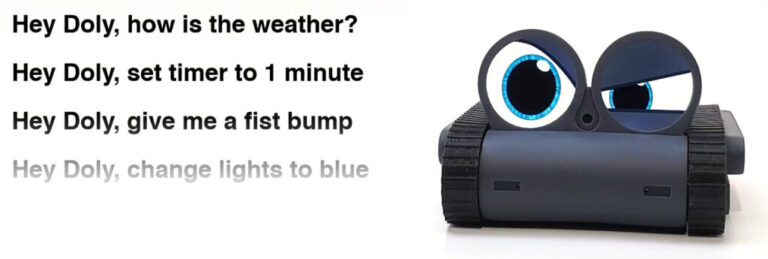
Doly responds to voice commands that start with: “Hey Doly“
Note: Explore the full list of commands in the Doly app under Interact → Command section.
Interact via Sensors
Doly isn’t just responsive to voice, he also reacts to physical interaction:
- Pet Doly as shown to express affection
- Nudge him gently to see his grumpy side
Use the Remote
Through the app’s Remote Control tab, you can:
- Navigate while seeing from Doly’s perspective
- Control arms and lights
Learn Coding and Robotics
Doly supports both learning and fun:
- Block-based coding for all ages
- Raspberry Pi-powered advanced Linux platform
- I/O ports for robotics projects
-
Note: Visit the link to learn more about block-based coding and explore advanced coding and robotics capabilities at doly.ai/developer
Customize Doly
Doly is the most customizable companion robot:
- Use the Doly app to change eye and light appearances
- Adjust settings through the app interface
- Swap in colorful tracks for a personalized look
- Supports physical add-on modules (coming soon)
- Open-source design allows customization using 3D printing
- Hardware upgradeable via compatible Raspberry Pi modules
Maintenance & Troubleshooting
Keep Doly running smoothly with these simple tips and solutions.
General Maintenance
- Use a soft, dry cloth to clean the body and screen.
- Avoid using liquids, sprays, or solvents.
- Check the tracks regularly and keep them free of dust or debris.
Battery Tips
- Always charge Doly using the provided charging station and a certified min. 1.5A USB power adapter.
- Avoid charging in high heat or direct sunlight.
- Ensure Doly is fully powered off when not in use to preserve battery life.
Performance Tips
- Restart Doly occasionally to clear background processes.
- Keep your app updated to access the latest features and fixes.
- Keep Doly’s firmware updated for performance and compatibility.
- For best interaction, use Doly in well-lit, clutter-free desktop areas.
Troubleshooting
Warranty & Customer Support
Your Doly robot is covered by a limited 1-year warranty from the date of purchase. This warranty covers manufacturing defects under normal use conditions.
What’s Covered
- Manufacturing and workmanship defects
- Hardware failures not caused by misuse
What’s Not Covered
- Damage caused by drops, spills, or improper use
- Unauthorized repairs or modifications
- Wear and tear due to normal usage
- Shipping costs are not covered under this warranty
Known Issues
Doly is a small robot with limited processing power and sensors. Like other AI-powered devices, it may occasionally make mistakes. We are actively reviewing your feedback and have published a list of known issues on our community page. Most of these issues are scheduled to be addressed in upcoming updates. You can find the known issues at the following link.
Known Issue – Doly Community
Need Help?
➡️ Visit doly.ai/support
Be sure to include your serial number and purchase details for faster service.